Guide
How to send mass email from Gmail with mail merge
Mail merge lets you send one email to many people while each person gets their own copy with their name, company or anything else from your spreadsheet. Sent from your own Gmail, it reads like a personal email, because it is one. Here is how to do it well.
1. Prepare your contact list
Put one person per row and one detail per column. The first row holds the column names; each name becomes a merge tag.
| First name | Company | City | |
|---|---|---|---|
| linh.tran@hanoifashion.vn | Linh | Hanoi Fashion House | Hanoi |
| david@northpeak.co | David | North Peak Outdoors | Seattle |
- Only include people who expect to hear from you: customers, attendees, people who gave you their address, or business contacts with a clear reason to be contacted.
- Remove addresses that asked you to stop. Mass Email also keeps an unsubscribe list that every campaign skips.
- Leave a cell empty rather than writing “N/A”; fallbacks (step 4) handle empty cells.
2. Install Mass Email and connect Gmail
Add the Mass Email extension to Chrome, open it from the toolbar or the Mass Email button in Gmail, and choose Settings → Connect Gmail. Google asks you to let Mass Email send email as you; it gets no access to read your inbox.
3. Add your recipients
Pick whichever is easiest:
- Paste: select the cells in Google Sheets or Excel (header row included), copy, and paste.
- CSV file: File → Download → CSV in Google Sheets, or Save as CSV in Excel.
- Google Sheet link: paste the sheet's address; Mass Email reads that tab with your own Google session.
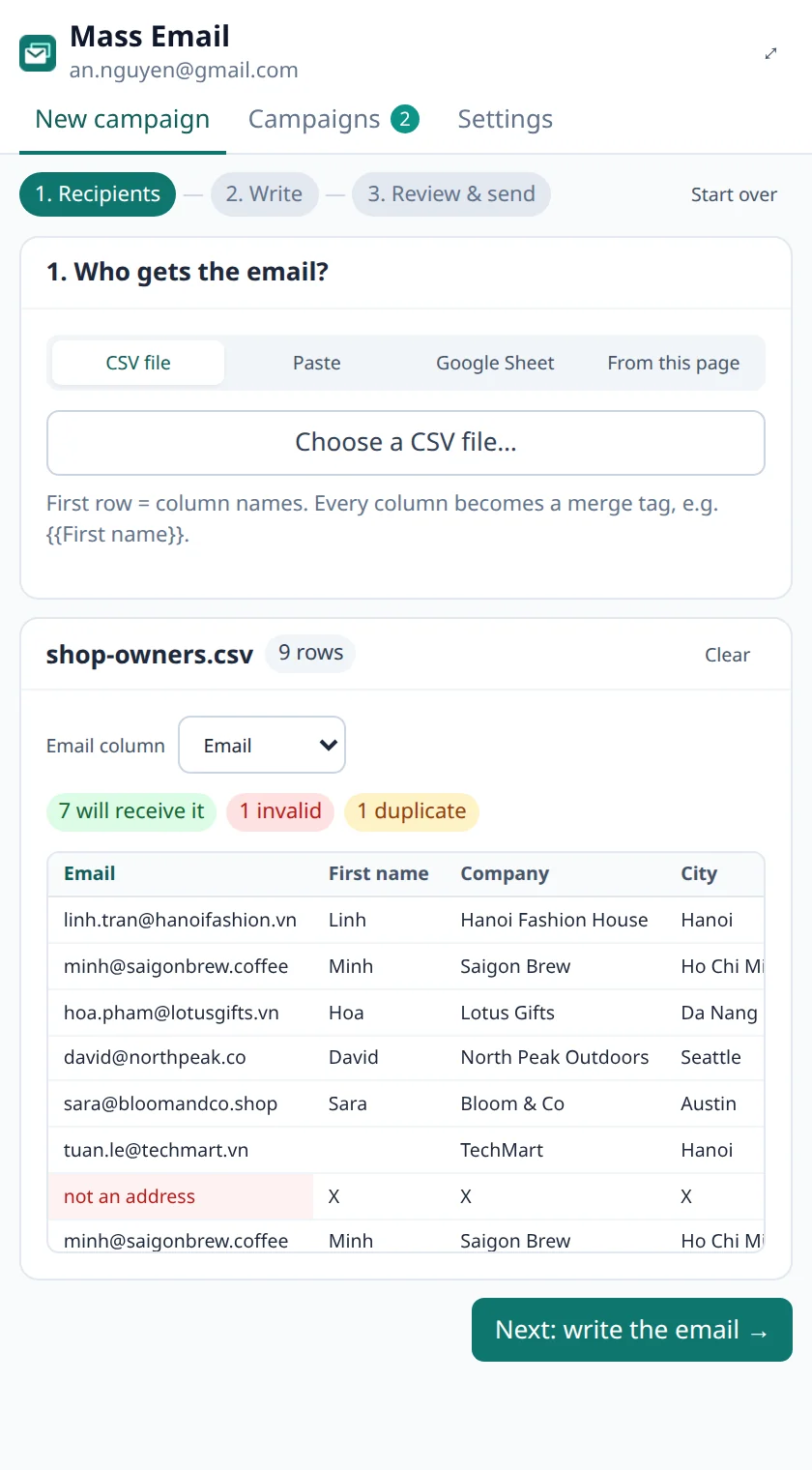
- From this page: collect the email addresses shown on the web page you have open.
Mass Email finds the email column and tells you how many addresses are invalid, duplicated or unsubscribed; those are skipped.
4. Write the email with merge tags
Write as you would to one person, and put a tag wherever a detail should change: {{First name}}, {{Company}}. Tags work in the subject too.
Add a fallback after a | for cells that might be empty: Hi {{First name|there}}, becomes “Hi Linh,” or “Hi there,”, never “Hi ,”.
Let AI write it
In Write with AI, describe the campaign in a sentence or two: who you are, what you offer or ask, and what the reader should do. Mass Email drafts the subject and body with your columns as merge tags, and can rewrite it shorter, friendlier, more formal or in another language.
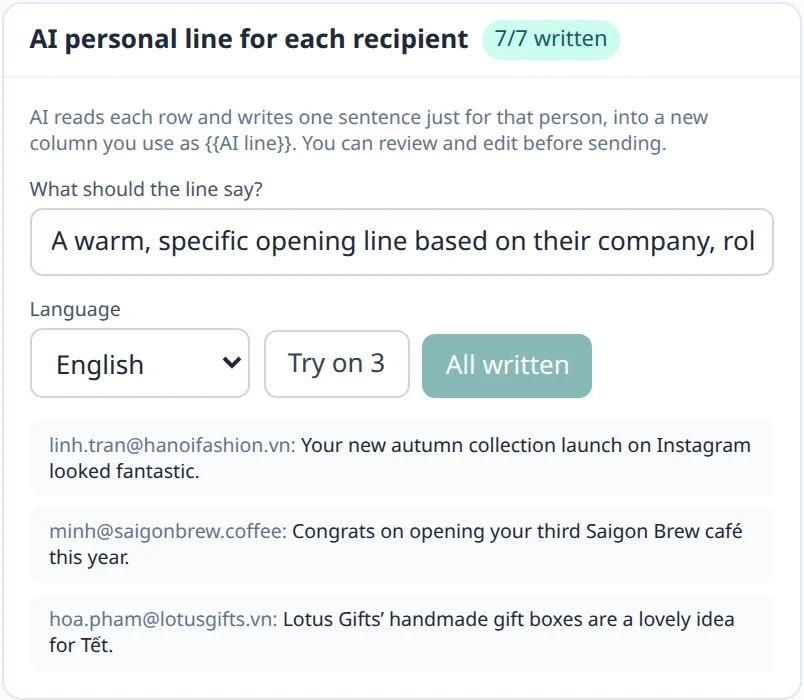
For a truly personal touch, AI personal line writes one sentence for each recipient from their row, such as an opening line about their company, into a column you use as {{AI line}}. Read them before sending: AI can be wrong about facts.
5. Check every email and send a test
The review step lists anything that could hurt the campaign: tags with no matching column, cells that would leave a blank, spam-trigger words, a subject in capitals, too many links, or a missing unsubscribe line. Step through the preview to read the email exactly as each person will receive it, then use Send me a test email to see it in your own inbox.
6. Send, and stay within Gmail's limits
Mass Email sends one email at a time from your Gmail, with a short random pause between them, and keeps going with the panel closed. Gmail limits how much one account can send in 24 hours:
| Account | Gmail's limit | Mass Email sends up to |
|---|---|---|
| Personal Gmail (@gmail.com) | about 500 a day | 400 a day |
| Google Workspace | about 2,000 a day | 1,500 a day |
The rest of the allowance stays free for your normal email. Longer lists continue automatically when the 24-hour window frees up, and if Gmail reports a limit, the campaign waits instead of failing.
Tips to stay out of spam
- Personalize. Identical bulk emails are a classic spam signal; even a name and one personal line help.
- Keep it plain. Short paragraphs, one or two links, no big images, no ALL CAPS or “!!!”.
- Avoid spam phrases such as “act now”, “100% free” or “guaranteed”.
- Make leaving easy. Keep the unsubscribe line on and honor requests quickly; complaints hurt far more than unsubscribes.
- Start small with a new account or domain, and grow volume over a few weeks.
- Own a domain? Set up SPF, DKIM and DMARC for it in Google Workspace; Gmail expects them from bulk senders.
- Clean your list. Remove addresses that bounce; Mass Email's campaign export shows which ones failed.
Frequently asked
Can I send mass email from Gmail without an extension?
Some paid Google Workspace plans include a basic mail merge in Gmail. It has no AI writing, no tags in the subject, no scheduling and a lower daily cap, and it is not available on personal Gmail accounts.
Is mass emailing from Gmail allowed?
Yes, within Gmail's limits and policies, and when your recipients expect your email. Sending unsolicited bulk email breaks Gmail's rules and anti-spam laws, and can get an account suspended.